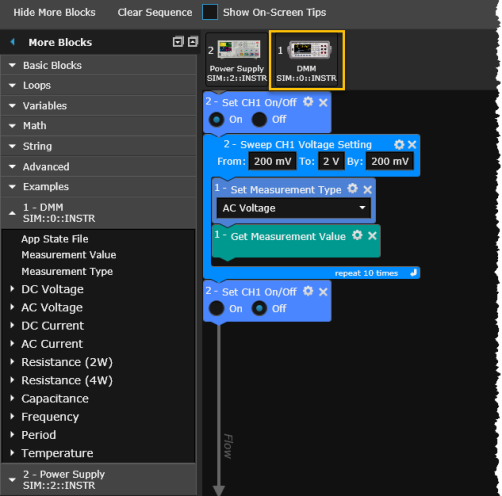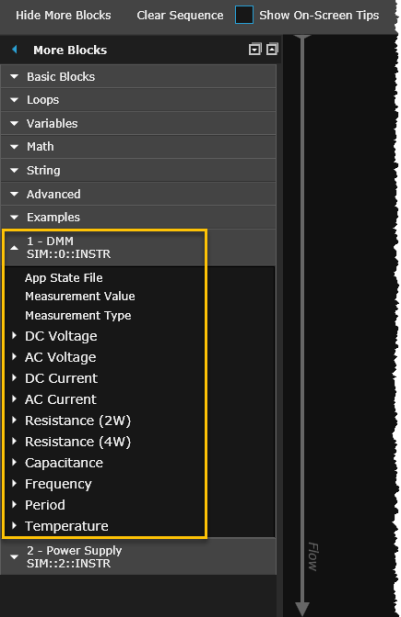
As an alternative to viewing instrument controls and properties from the graphical bench application panels, you can use the Instrument Command toolbars to add blocks to a Sequence directly from an instrument-specific command list. Each command list includes all of the same measurements, configuration settings, and properties outlined with an orange rectangle in the corresponding bench application panel. However, since the command lists are organized by measurement function here within the Instrument Command toolbar, you may find it more convenient than the graphical view in the bench application panels.
To add a command block to the Sequence, expand the toolbar for the desired instrument, expand the specific measurement function, and then drag the command block to the Sequence Workspace. Once added to the Sequence Workspace, all of the block settings and controls operate the same as described elsewhere in this help file.
Hint: If your Sequence contains command blocks from multiple instruments, you can verify which steps apply to each instrument by clicking on the instrument icons in the Sequence Workspace. The blocks in the Sequence that relate to the selected instrument are highlighted in light blue – the corresponding data in the Preview chart and data table are also highlighted.